Positions panel: price alerts and live P&L
The Positions panel keeps your open bags, closed trades and watched tokens beside any page, with live P&L, one-tap sells and market cap price alerts.
Portfolio is where you go to think. The panel is where you go to act, next to whatever you have open. The full page with stats and the P&L calendar is Portfolio and P&L.
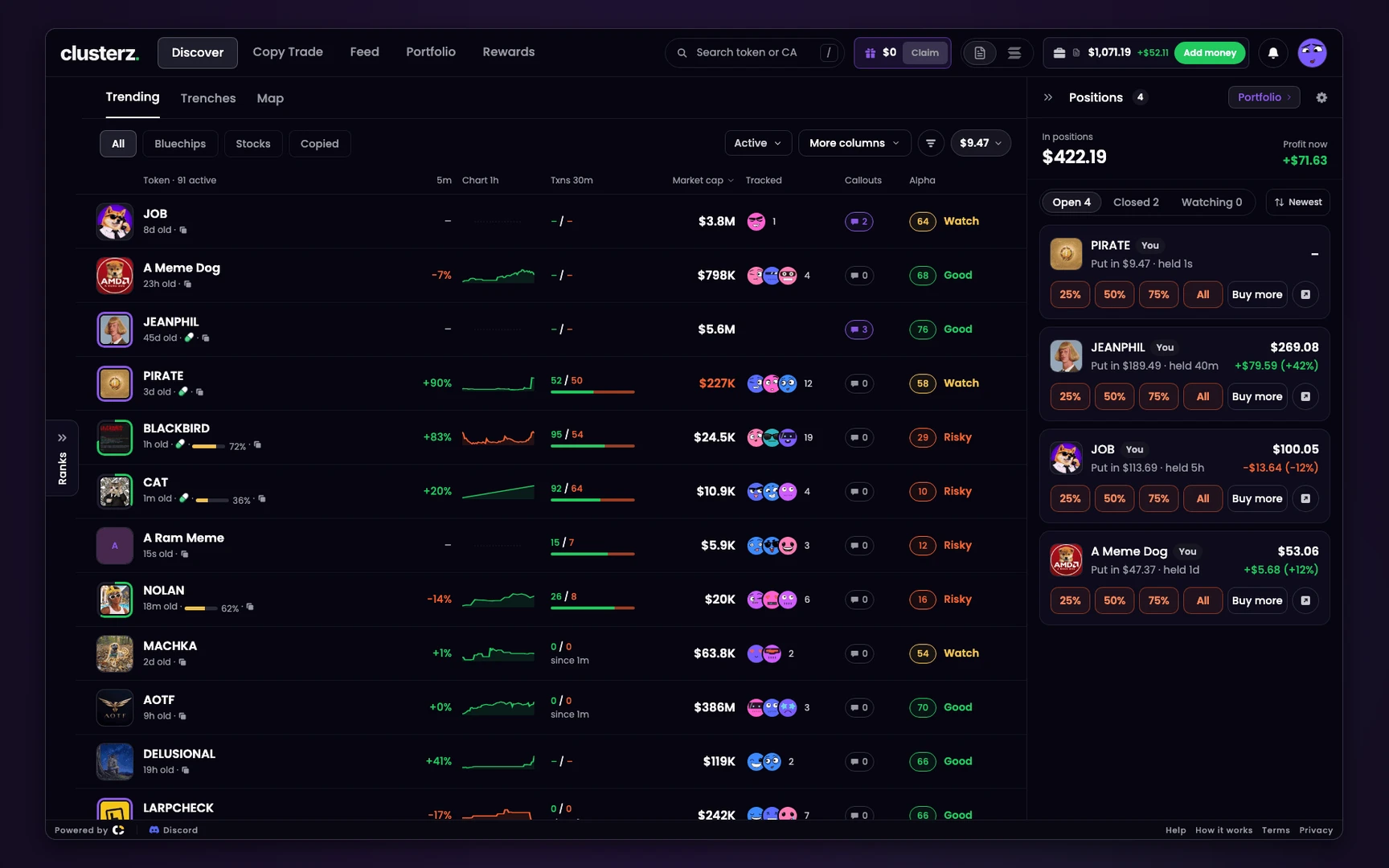 The Positions panel on the right: In positions, Profit now, and a sell row on every bag.
Open the panel and track open positions
On a desktop, press the Positions edge on the right of the screen or the ] key. The panel takes a column on the right. The chevron at its top left folds it away again.
On a phone, tap the pill over the map. It shows up to three token logos, how many you hold and your P&L in whole dollars, like "3 open · +$64".
The pill only shows while you hold something. The panel opens as a sheet from the bottom. Tap outside it or swipe it down to close it.
The head carries the count, a Portfolio link and, on a desktop, the gear for Trade settings. The panel remembers in that browser whether it was open, its tab, its sort and its Closed range. On a phone the sheet always starts shut.
The three tabs
Three tabs, each with its count: Open, Closed and Watching.
Over the list sits a summary. On Open and Watching it reads In positions, what your bags are worth now, and Profit now, their P&L together.
On Closed it reads Closed today, Closed in 7 days or Closed in all, with the number of trades, and Banked: what those sells made or lost.
Signed out, the panel says "Sign in to see your positions". Nothing held yet: "Nothing bought yet", with Back to the map.
What each open position shows
One card per token you hold. On it:
- The name and who bought it. You for your own buys. Copied with the trader's face and name when a copy of a trader bought it. Copy with a target for a fast, together or dev copy. A Moon tag marks a moonbag.
- Put in and held: what you paid and how long you have held it, in seconds, minutes, hours or days. The held time keeps ticking between updates.
- Value and P&L on the right: what the bag is worth now, and the P&L in money and percent. After fees by default. See How we count P&L.
- The sell row: 25%, 50%, 75% and All, then Buy more and the share button for a P&L card.
Tap the card's own space, not a button, to open or fold it. An open card adds a sparkline of the price and the Exits chip, for example "TP +100% · SL -30%".
A card with exits set starts open. One with none reads Set exits. Either chip opens the exit editor for that one position. See Set exits on one position.
Moonbags sit under their own Moonbags head with a count, below your other bags. A moonbag is what you kept after selling all. No rule touches it, so only you sell it. See Keep a slice when you sell all.
Quick sells and Buy more from the row
The sells are the same as on the token page. The first three sizes come from Trade settings. All is always the fourth. While a sell is landing, its button spins.
Buy more buys at once at your one-tap amount when One-tap buy is on. Otherwise it opens the buy sheet for that token.
Where adding to a Live position is not possible yet, the button is greyed out and says "Adding to a live position is not supported yet".
A buy you just sent shows as its own card, "Buy sent" with a timer, until it lands.
When a card goes grey
If the page loses its live connection, cards get a Not live tag, the value dims and the sell buttons turn off until the connection is back.
No selling blind on a stale price. The other row warnings, like Verifying price, are listed in Your bags and your closed trades.
A card the list just moved ignores a press for a moment, so a double click never sells the bag that slid into place.
Sort your positions: Newest, Oldest, Best P&L, Worst P&L
The sort button on the Open tab has four orders:
| Sort | Order |
|---|---|
| Newest | Shortest held first. The default. |
| Oldest | Longest held first. |
| Best P&L | Biggest gain first. |
| Worst P&L | Biggest loss first. |
Best and Worst keep moving as the P&L moves, at most once a second, and never while you press a card or hover a sell button. Two cards swap only when their returns differ by more than half a point.
The sort only applies to Open. Closed and Watching have none.
Closed trades
Closed lists what you sold, newest first, over Today, 7d or All. Up to 100 trades show.
Each card has a tag for why it closed: You sold, Take profit hit, Stop loss hit, Trailing stop, or a trader's name and "sold" when it closed because his cluster sold.
Then how long you held it, the P&L in money and percent, In and Out, and Share P&L.
Nothing in range: "Nothing closed today" or "Nothing closed yet".
Watching: your memecoin watchlist
Watching holds tokens you are eyeing but have not bought. Add one with the eye, Watch, on a token card. Nothing there yet: "Nothing watched yet. Tap the eye on a token card."
Each watched card shows:
- The market cap now, with a ~ in front when it is an estimate.
- The move since you added it, like "+40% since pinned 12m ago".
- new trades with a count, when tracked wallets traded it since you last opened its card.
- A line of the market cap since you pinned it, with your alert level dashed across it.
- The cluster holding it, how many wallets, buys and sells since the pin, and holding with a bar.
- Last: the newest tracked trade on it, who, bought or sold, how much and how long ago.
Under that: Buy at your one-tap amount (your first quick-buy size when one-tap is off), the bell, and the x to stop watching. The x comes with an Undo toast. Buy a watched token and it leaves Watching for Open.
Set a market cap price alert
- On a Watching card, press the bell.
- Pick Goes above or Goes below.
- Type a market cap: 300K, 2M, 1.5M or 2,000,000 all work. A bare number under 1,000 does not.
- Press Set alert, or Enter. Escape closes the editor.
The level has to be on the right side of the market cap now.
Set "Goes above" under the current cap and the card says so, for example "Market cap is $412K now. Pick a value above it." Anything it cannot read: "Write a market cap like 2M or 300K."
The card then wears the level on a button, like Above $300K. Press it to change the level. Clear in the editor takes it off.
When the market cap crosses your level on a phone, a toast says so, for example "TOKEN went above $300.0k MC", and the card lights up with "Above $300K. Hit 5m ago." Opening the card marks the hit as seen.
What "per browser" means for your alerts
Your watched tokens and their alerts are saved in the browser you set them in. Not on your account.
- Another device or browser starts empty. Set an alert on your phone and your laptop does not have it. Clear the site's data and they are gone.
- They only check while clusterz is on screen. A hidden tab or a locked phone checks nothing. There is no push notification and no email.
- On a desktop, no toast fires yet. The level saves to the card, but the desktop panel does not check it. Use your phone for alerts you care about.
- No alert while you hold it. Once you buy the token it moves to Open, and the alert stops checking.
An alert is a heads-up, not an order. It does not buy or sell anything. For levels that sell for you, use exits: Exits.
Before you rely on the panel
- Set exits on any bag you cannot watch. The panel shows the P&L. It does not protect it.
- Check Not live before you read a number. A dimmed card is an old price.
- Treat price alerts as phone-only and screen-on only.
- Copies have more detail in My copies.