Buying and selling
Buy in one tap at your preset amounts. Sell in quarters, or dump the whole bag at once. When it sends, you are already in.
What actually happens
Every buy and sell runs in the mode you are in. Practice uses practice money against the live market. Live spends real SOL from your Main wallet. Your keys stay yours. We never hold your funds.
You click, the position is on every screen, and one toast confirms it, like "Bought $25 of $FROG" or "Sold 50% of $FROG". You do not wait on the network to see your trade on the page. We lost enough entries staring at spinners while the candle ran.
Buy from the token page
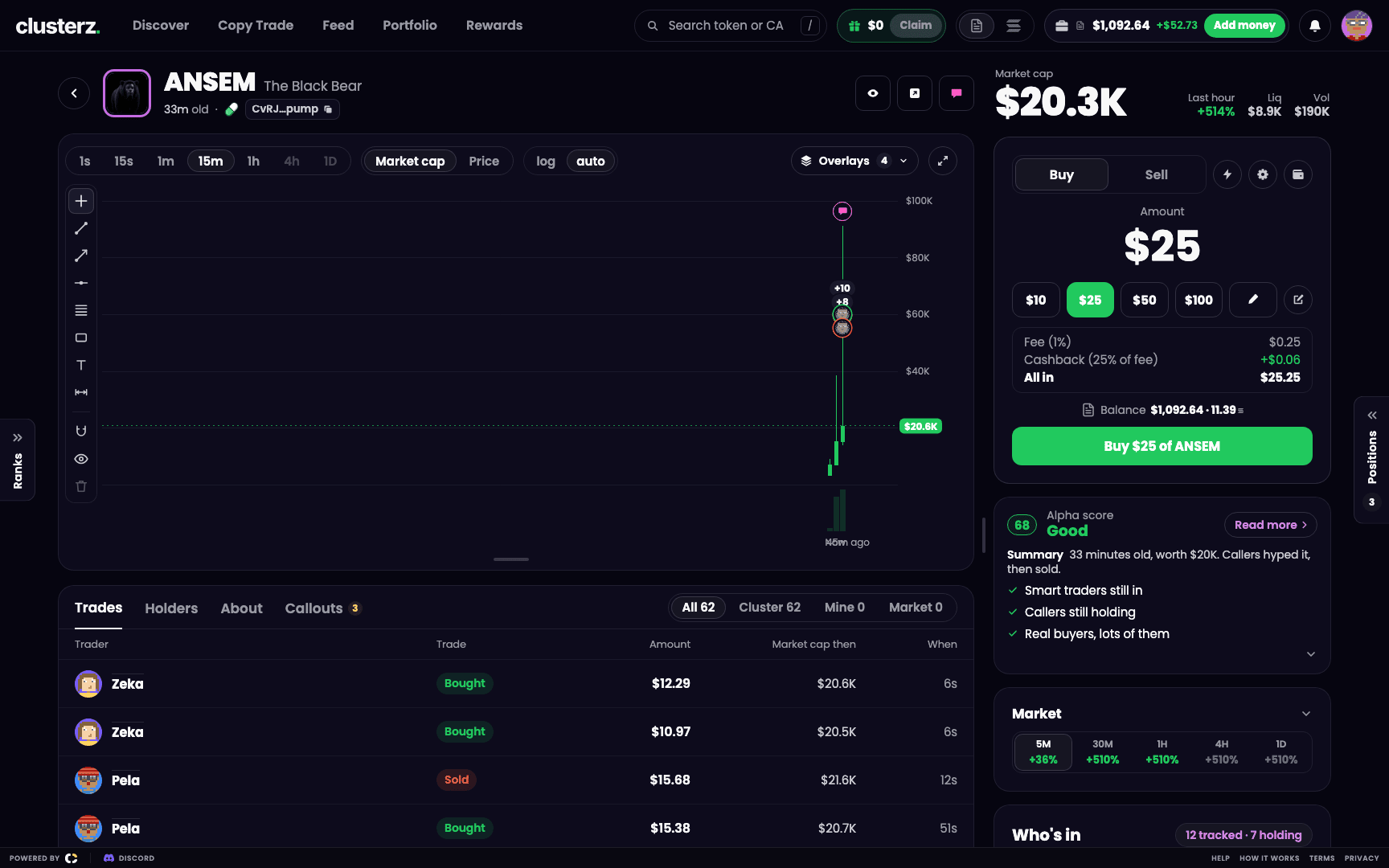 Pick a preset. Send it.
The trade panel sits next to the chart. Two tabs: Buy and Sell.
- Open a token from Trending, Trenches, the map or search.
- On the Buy tab, pick one of your four preset amounts, or press the pencil chip and type your own in Amount.
- Check the Balance line. The icon beside it tells you if you are in Practice or Live.
- Press Buy $25 of FROG (the button names your amount and the token).
When the clusterz fee applies, the panel shows the Fee, your Cashback on it when you earn one, and the All in total before you press Buy. No surprises. See Fees.
Wallet short? The panel says "Not enough SOL" and by how much, like "Not enough SOL, $215.50 short", with Add money right beside the Buy. See Funding your wallet.
The quick-buy grid
Hit the lightning icon in the Buy panel's header. The amount panel turns into the quick-buy grid: your four presets as big buttons, each one a buy on its own. No typing, no second click. Hit it again to go back. Your choice sticks to your account.
Buying from lists and the map
The Buy button on a Trending row, a Trenches card or a map card buys at your buy amount in one tap. Set the amount from the amount chip beside One-tap buy. A Trenches column can keep its own amount.
Turn on the One-tap buy switch and a click on a token on the map buys it at that amount. Click means ape. On a phone, hold One-tap buy to set the amount.
Buy on a phone
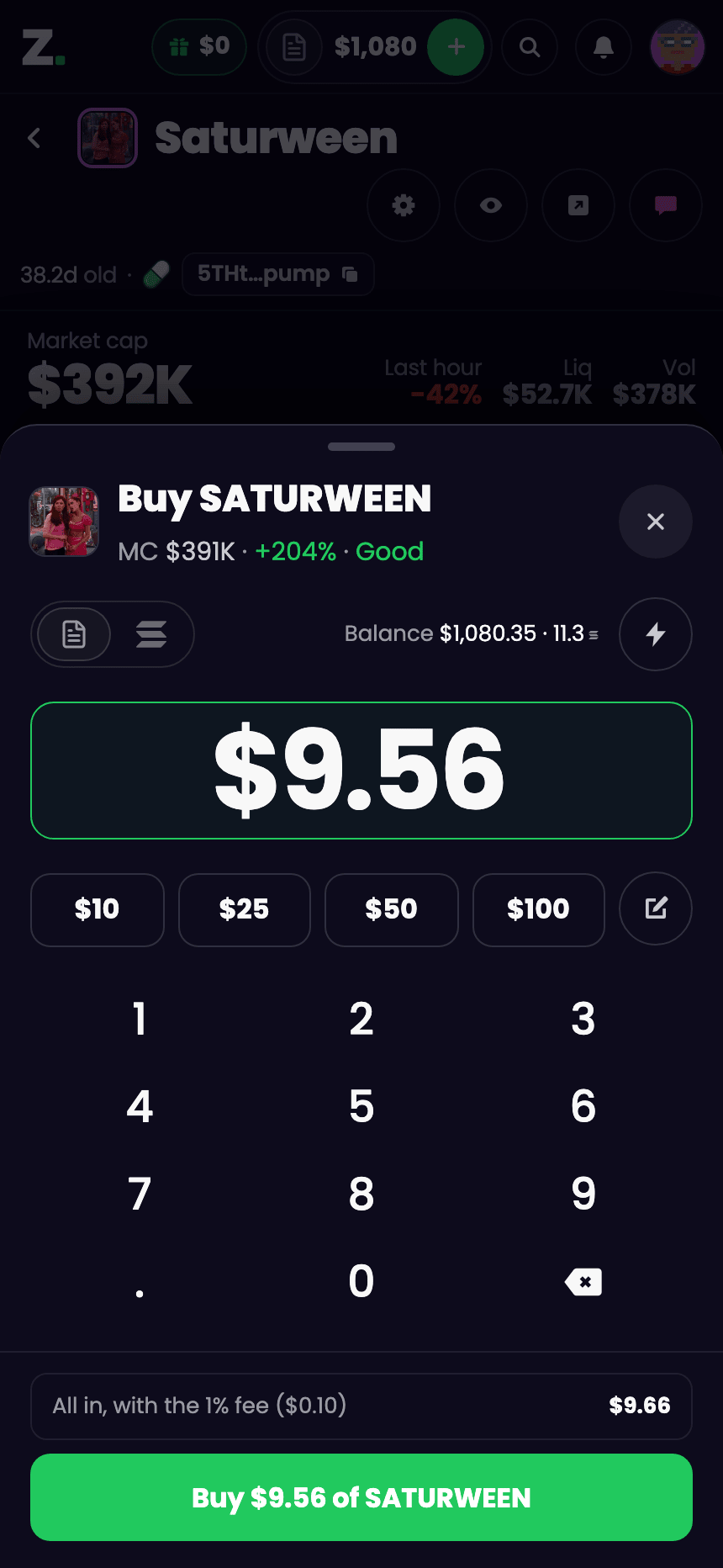 The buy sheet on a phone. Keypad and all.
Half the trenches trade from bed. On a phone the token page has a bar at the bottom: one green Buy at your amount, and an arrow beside it.
- Tap Buy to buy at the amount shown.
- Tap the arrow to open the buy sheet for any other amount.
- In the sheet, tap a preset or type an amount on the keypad.
- Switch between Practice and Live with the mode icons in the sheet. Practice is one tap. Live always asks you to confirm.
- Tap the lightning icon to turn Quick buy on. The bar then shows your four presets, each a buy in one tap.
Sell
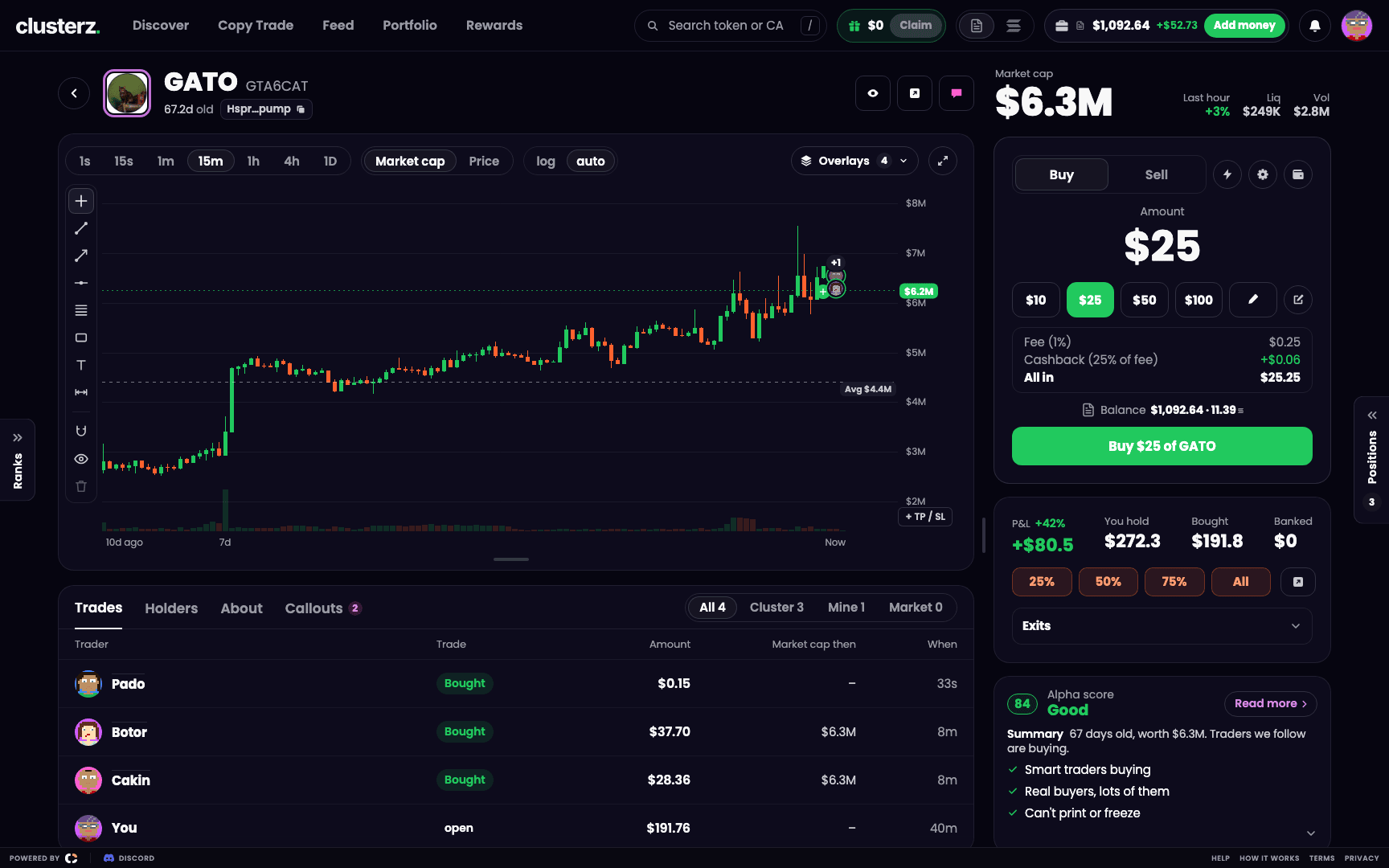 25%, 50%, 75% or All. Take profit before someone takes it from you.
Once you hold a token, four sell buttons show on the token page, your positions and the token's row: 25%, 50%, 75% and All. Each percentage is a share of what you still hold, so 50% twice leaves a quarter. All sells everything.
The panel's Sell tab works like Buy. Pick a size, or type a value and the panel sells that much of your position. The button names the result, like "Sell $40 of FROG".
Keep a slice when you sell all
Sold everything, then watched it keep sending without you? Same. You can keep a small part when you press All, in case it keeps going. Turn on Keep a slice when selling all in Account and pick 5%, 10%, 20% or Other for your own share, from 1% to 50%. Once on, the sell row shows "Keep 10% when I sell all", the All button says what it keeps, and the toast reads "Sold 90% of $FROG, kept 10%". The keep line applies to that position only, so switch it off there to sell all of that one.
The slice left behind is your moonbag. It stays in until you sell it.
Trade settings
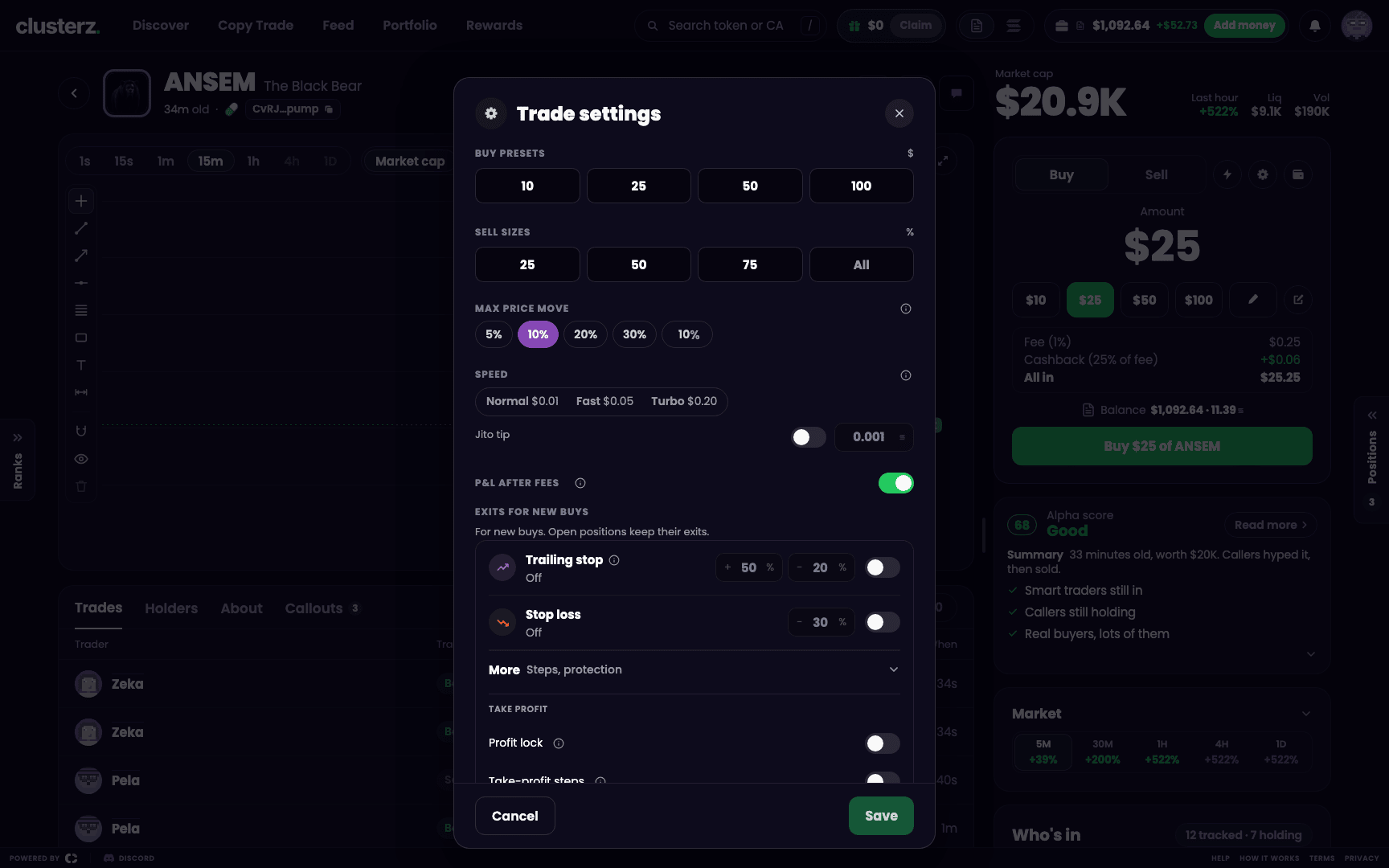 Presets, sell sizes, max price move and speed. Set it once, trade fast.
Set this up once and stop fiddling mid-pump. Open Trade settings from the gear on a token page. Nothing changes until you press Save. Reset to defaults fills in the defaults. Cancel drops your edits.
| Setting | What it does | Default |
|---|---|---|
| Buy presets | Your four buy amounts | 10, 25, 50, 100 USD, or 0.01, 0.05, 0.1, 0.5 SOL when you show values in SOL |
| Sell sizes | The first three sell buttons; All is fixed | 25%, 50%, 75% |
| Max price move | The most the price can move against you on a Live trade: 5%, 10%, 20%, 30% or your own value | 10% |
| Speed | An extra tip per Live trade so it lands faster: Normal, Fast or Turbo | Off |
| P&L after fees | P&L after every fee, with a break-even line | On |
Buy presets go from 1 to 100,000 USD, or 0.001 to 100 SOL. All four amounts must rise from left to right. Same rule for sell sizes, which run from 1% to 100%. You can also edit amounts in place with the pencil next to the chips (Edit buy amounts, Edit sell sizes). Those edits save to your Trade settings.
Max price move turns amber above 25%. That is us yelling at you: your trade can go through at a price far worse than the one you see. That is how you become someone else's exit.
Need it to land faster? Speed presets cost about 0.01, 0.05 and 0.20 USD each, paid in SOL at today's price. Or switch on Jito tip and set your own, from 0.0001 to 0.01 SOL. Either way it is paid on each Live trade.
Trade settings also holds Exits for new buys. See Exits.
After you click
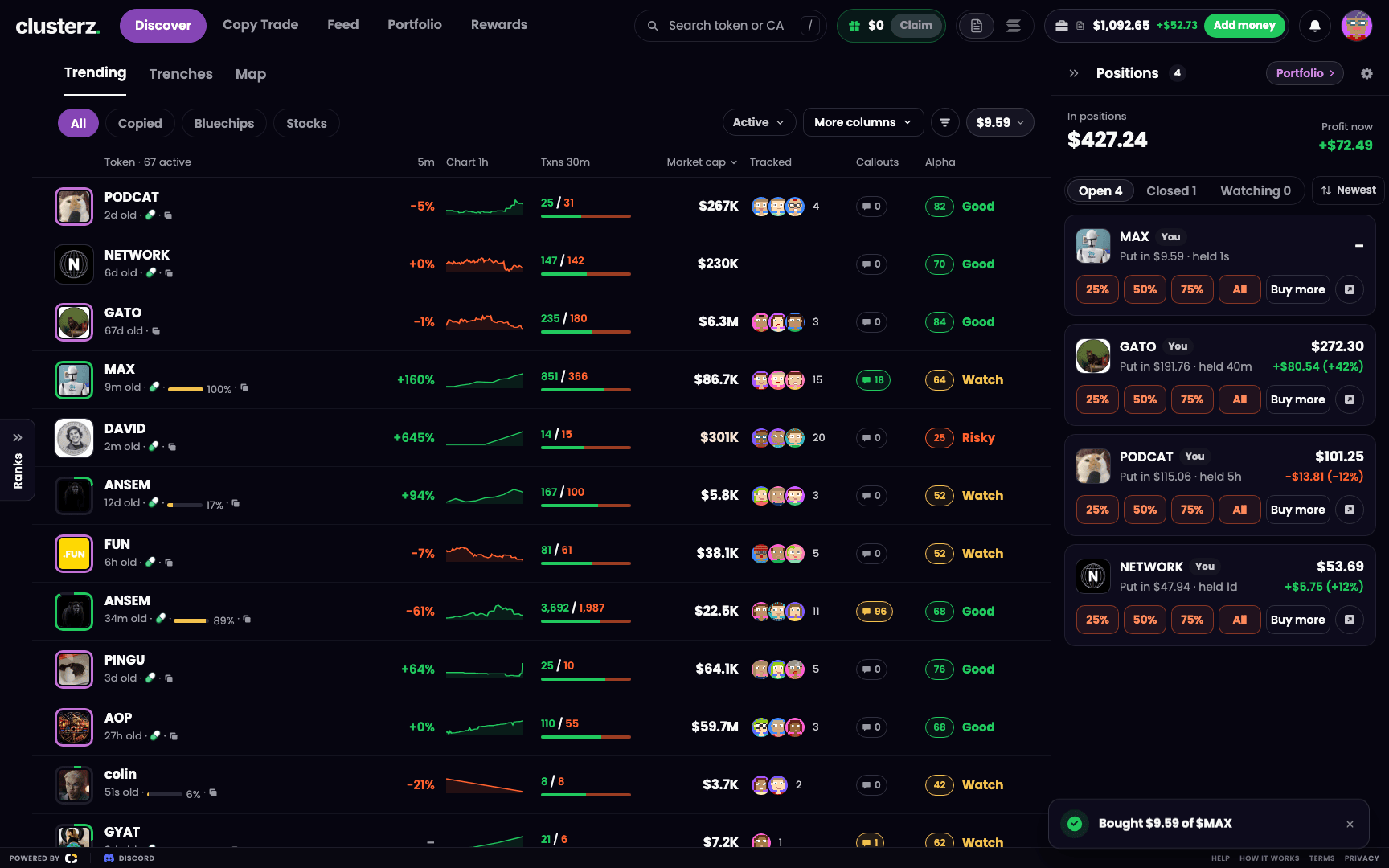 One click, one toast. Done.
- One toast per trade, at the click: "Bought 0.1 SOL of $FROG", "Added … to $FROG" when you already hold it, "Sold all of $FROG".
- The position updates at once on the token page, in your positions and on Portfolio.
- A Live trade that takes longer to land shows "Still confirming $FROG buy" in amber. No answer within a minute and the toast reads "No word on $FROG buy · Check your wallet". Tap it to open your wallet on a network explorer.
- A failed trade turns the same toast red and says why, like "Buy failed: …" or "Sell failed: …". Whatever the click drew on the page comes off again.
- In Live, one trade per token lands at a time. A second click on the same token waits and goes as soon as the first one lands. "Not sold: another sell is landing" means nothing was sold. Sell again once the other lands.
When Live trading pauses
Sometimes the network goes down. If our server loses its connection to it, a banner reads "Trading is paused. Selling too, until our Solana connection returns. To sell now, export your key." The trade panel shows "Trading paused: Solana down". Live buy and sell buttons are off until the connection returns. Practice keeps working. But your keys are yours. Press Export key on the banner and sell from any other wallet app. We are not going to hold your bags hostage.
clusterz can also pause Live trading for everyone. The banner then reads "Live trading is paused by clusterz. Nothing trades until it resumes. Your SOL is untouched."
What we actually do
- Set your four presets to the sizes you actually trade, so a buy is one tap.
- Hit 25% to take some profit and let the rest run.
- Keep Max price move at 10% to 20% for most tokens. Raise it only for fast-moving launches where you accept a worse price.
- In Live, copies and snipes buy only tokens they can sell again. No honeypots on autopilot. A buy you click is your own call and is never held to that rule.