Trenches
Fresh pump.fun launches, live, in three columns. Follow a token from creation to graduation and buy it at any stage.
This is where we used to get rugged blind. Bundled launch, insiders loaded, dev gone before the curve hit 50%. Now we watch it happen.
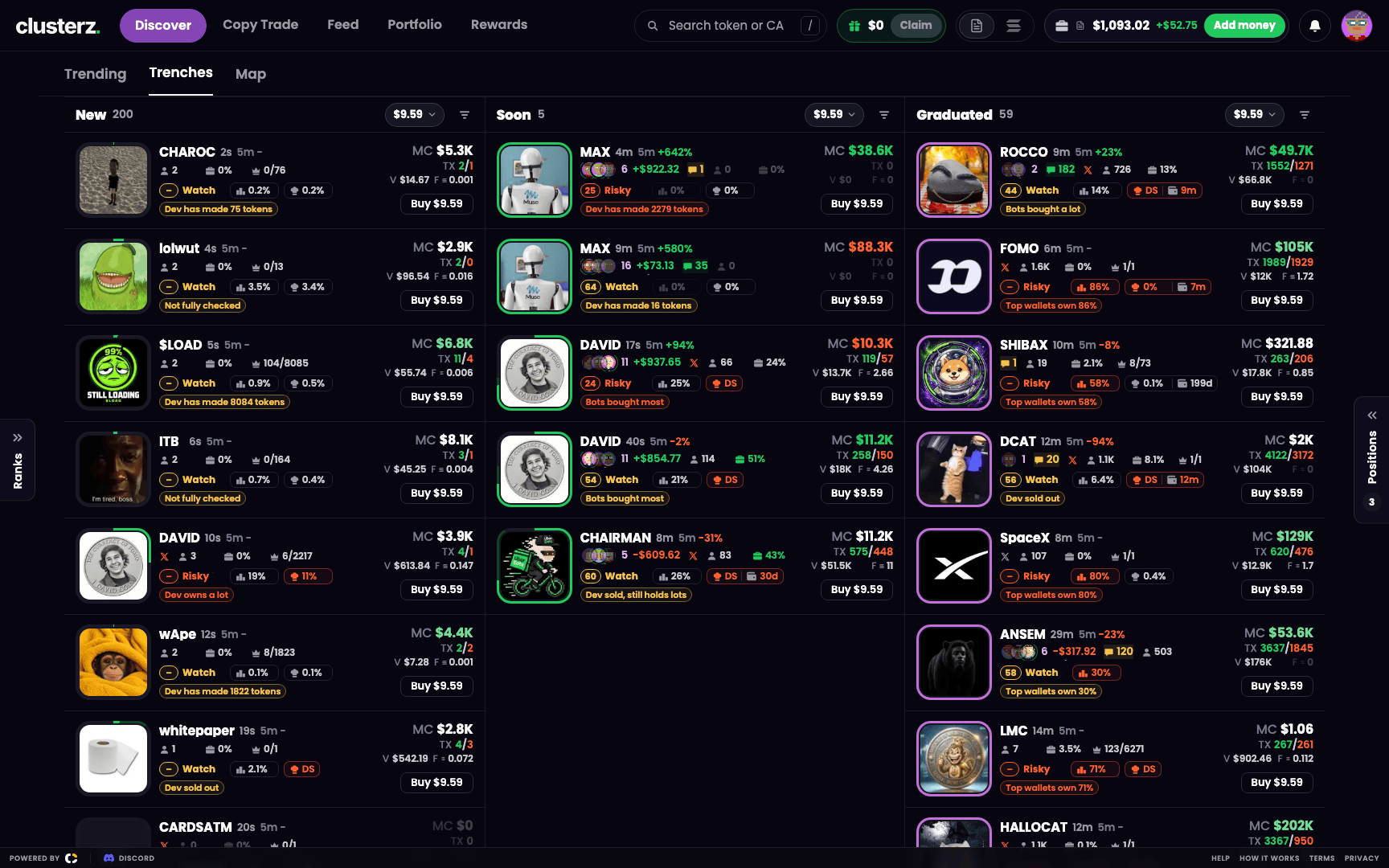 Trenches: New, Soon and Graduated, all live. Birth to graduation on one screen.
What actually happens
Open Discover, hit the Trenches tab. Every launch the server sees lands in one of three columns:
- New: launches still on their bonding curve, below 60%, or whose curve progress is not known yet. Newest first.
- Soon: launches at 60% or more of their bonding curve. Furthest along on top.
- Graduated: launches that finished their curve. Most recent graduation on top.
Each column holds up to 200 cards. The header shows how many it holds right now.
Migrating
A token finishes its curve. Its trading pool takes a moment to open. During that time the card stays pinned to the top of Soon with a full ring and reads Migrating ("Curve done, its pool is opening"). Its Buy button shows a spinner and does nothing. No pool trades, no buy. Once the pool trades, the card jumps to the top of Graduated with a short green flash.
Columns that hold still
New launches arrive several times a second. Chasing a card you want to click is how you ape the wrong token. So a column holds still while your pointer is on it, and a pause icon in the column header shows it is held. A column also holds while you are scrolled down in it, and for a moment after you touch it on a phone.
While a column is held, a new button shows how many launches are waiting (for example "4 new"). Press it to jump back to the top and let them in.
Reading a card
Every card reads like a Trending row on a phone. Learn one, you can read them all in half a second, which is about how long you get in here.
- Logo ring: green shows how far the token is along its bonding curve, with a fainter green for the highest it reached. The ring turns violet once the token graduates. Hover or tap the logo for the exact percent.
- Top line: the ticker (hover for the full name), the age, and 5m, the price change over the last 5 minutes. A token under 5 minutes old shows its move since launch.
- Second line: tracked traders in the token with their faces, a count and their net flow (hover the faces to see who bought), callouts, a matching narrative, the X account, holders, pro traders, the dev's record, and DexScreener paid or boosted.
- Third line: the Alpha score and the holder checks, with the score's top reason under them.
- Right side: MC (market cap), TX (buys and sells), V (volume) and F (fees paid by everyone who traded it, in SOL), with Buy under them.
Not known yet? You get a faded placeholder, and the hover text says it is not known yet. We do not make numbers up.
Holder checks
This is the rug detector. Hover a pill on desktop, tap it on a phone. A pill goes warning colour when it crosses these lines:
| Check | Warning when |
|---|---|
| Top 10 holders | they own more than 30% |
| Dev | the dev holds more than 5%, was funded from a fresh wallet, or has sold (the pill then reads DS) |
| Snipers | snipers hold more than 20% |
| Insiders (wallets linked by funding) | they hold more than 20% |
| Bundle | the launch bundle still holds more than 20% |
| Fresh wallets in the top 20 | 3 or more |
| Logo reused, Links reused | any earlier launch used the same logo, X, site or Telegram |
The dev pill also shows where the dev's money came from and how long ago. Pro traders turns green when 30% or more of the volume came through trading terminals. The dev record reads graduated over created, so 1/3 means one of the dev's three launches graduated. The other two, you can guess.
Aping from Trenches
- Pick an amount on the column's amount pill, next to its filter button. Each column has its own amount. Spend less on New, more on Graduated. A column with no amount of its own uses your quick-buy amount.
- Press Buy on a card. The buy uses the mode you are in: practice money in Practice, the SOL in your wallet in Live.
- Once you hold it, the card shows your position and its sell buttons, same as a row in Trending. Take profit before someone takes it from you.
Click anywhere else on a card for the token card: chart and full details. See Token page and Buying and selling.
Filters per column
Each column gets its own filter button, next to its amount pill. Same Filters sheet as the rest of Discover, but what you build sticks to that column only. The sheet says Saved for this column. Press Save to apply it. The button shows how many filters are on. Filter too hard and the column reads "No launch matches."
The ones we actually use: market cap, age, holders, top 10 holders, dev holding, bundle, snipers, and tracked traders in the token. Your column filters stay in this browser and ride the page address too. Share the link and it opens Trenches with the same column filters. Send your setup to the group chat. See Discover for every filter.
On your phone
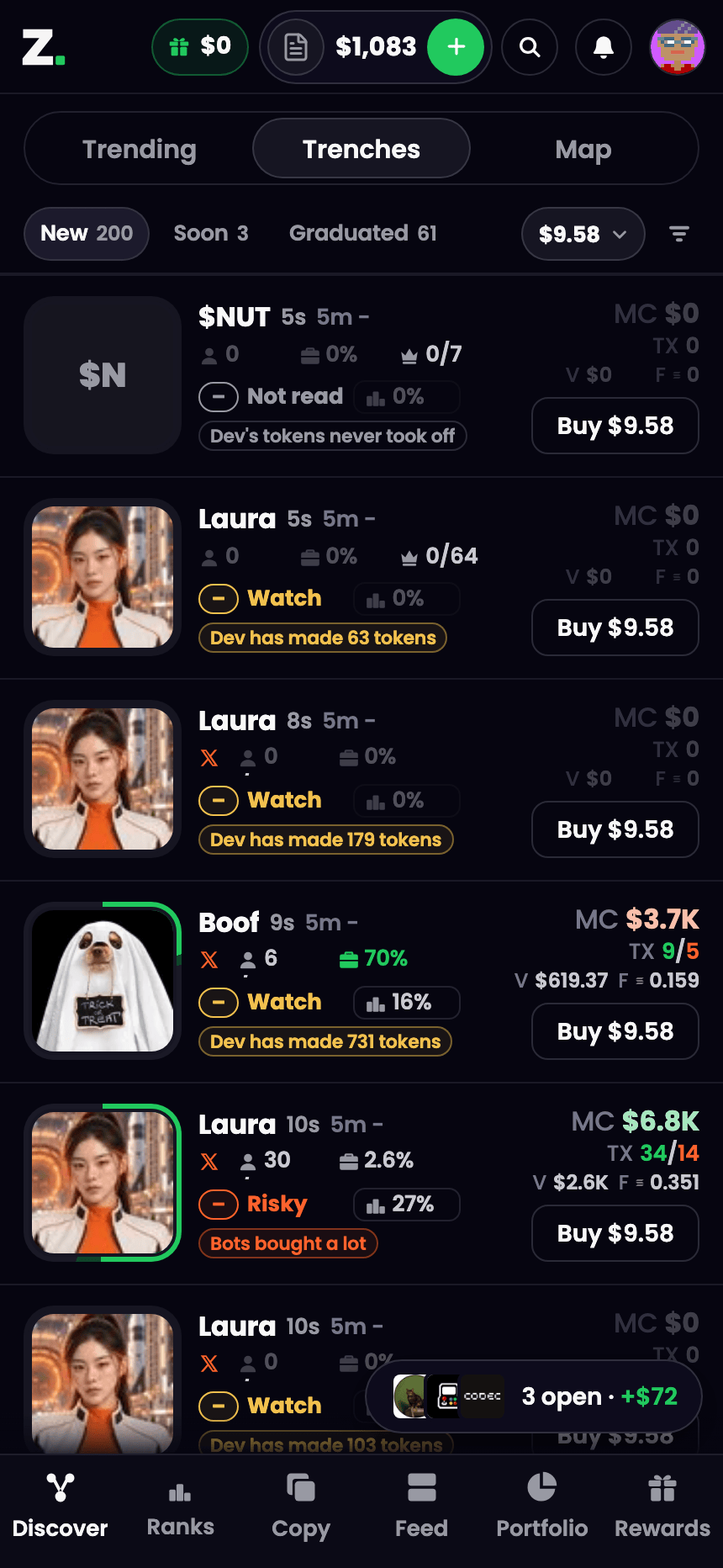 Trenches on a phone. Same trenches, one column at a time.
On a phone, or any narrow window, you get one column at a time under tabs: New, Soon, Graduated, each with its count. The amount pill and filter button sit at the end of the tabs and follow whichever tab you pick. Tap an icon on a card to see what it means. Tap anywhere else on the card to open it.
How we play it
- Small amount on New, bigger one on Graduated.
- Filter New to tokens with tracked traders in them. Now you only see launches a tracked trader already bought.
- Watch the dev pill. DS means the dev has sold. You know what that means.
- A card full of warning pills is a reason to open the token card before you buy. Usually it is a reason not to.