Account and security
Account is where your stuff lives. Your profile, your wallets, your keys, and every setting that runs across the app.
What you actually own
Sign in and your clusterz account exists. A Solana wallet gets made for it in the same moment. It is yours, not ours. Withdraw any time. Export the private key any time. We never hold your funds, and nobody asks for a passport. No identity checks.
Your keys. Your bags.
Press your picture in the header to open Account. Under your name it reads Account and settings. On desktop it splits into three columns: Wallet, Money and display, and Account. On your phone the same rows stack in one column, and Sign-in and security gets a page of its own.
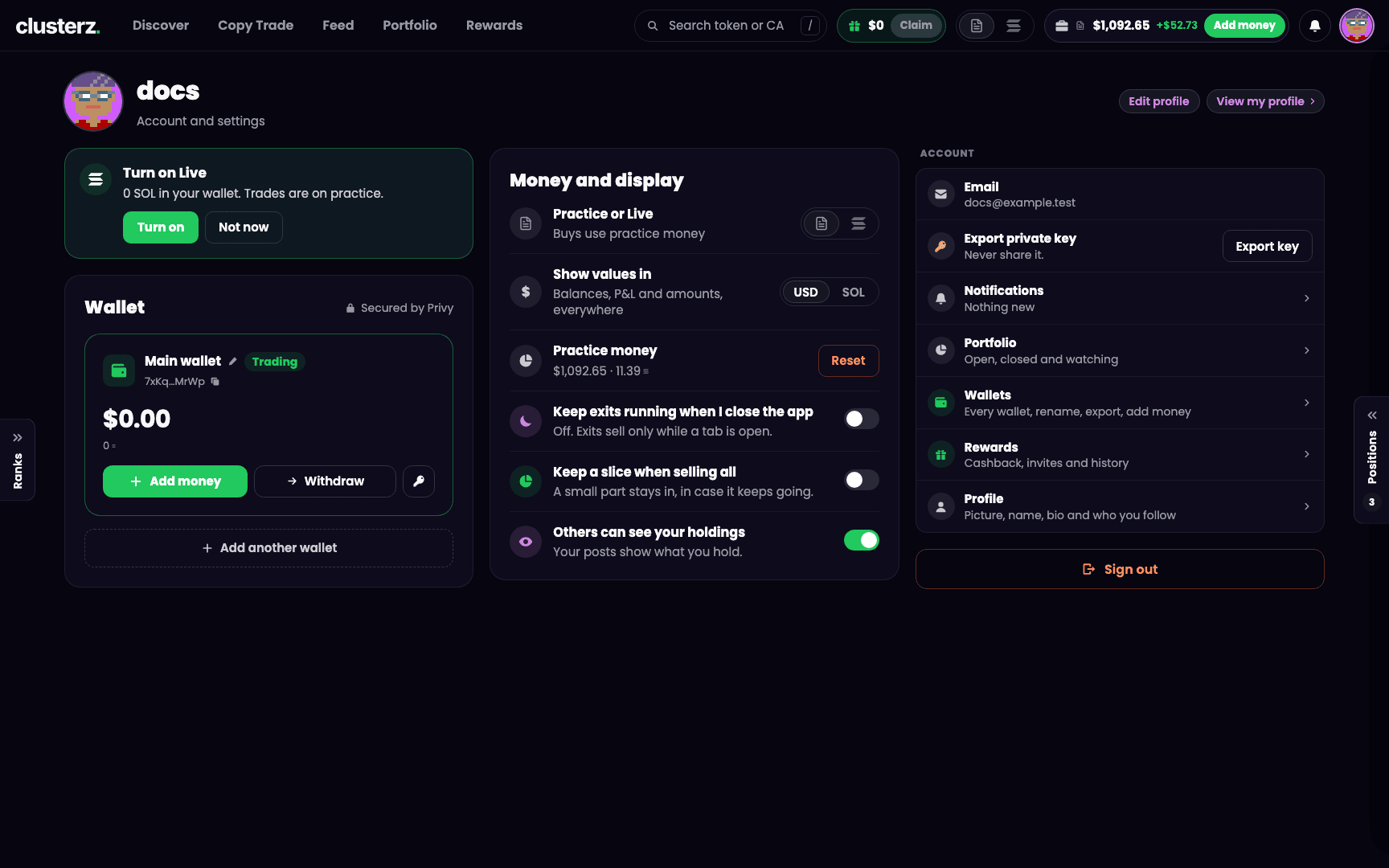 Account: profile, mode, money and display, wallets, sign-in. Everything that is yours, in one place.
Your profile
Up top: your picture, your name and, on desktop once you have one, your rank this week. Two buttons next to it:
- Edit profile opens the profile sheet. Change your picture, handle and bio, then press Save. A handle is 3 to 20 letters, digits or _, starting with a letter. You can change it once a week. A bio holds up to 160 characters. The Following tab lists the traders you follow.
- View my profile opens your profile in the Feed, the way everyone else sees it.
On your phone the head has one Profile button. Same profile sheet.
No handle yet? The page reads No name yet.
Money and display
- Practice or Live switches your mode. The line under it tells you what your buys use: "Buys use practice money" or "Buys use your Main wallet". See Practice and Live.
- Show values in picks USD or SOL for balances, P&L and amounts, everywhere in the app.
- Practice money shows your practice balance. Reset starts it over. Your practice trades get archived. Live money, trades and wallets are never touched.
- Keep exits running when I close the app lets your Live exits sell while no tab is open. More below.
- Keep a slice when selling all holds back a small part of a token when you press All. Pick 5%, 10%, 20% or Other (1 to 50%). A moonbag, on purpose. See Buying and selling.
- Others can see your holdings shows or hides what you hold on your Feed posts. It shows up once you have a Feed profile.
Wallets
Open Wallets from the Account page. Every wallet on your account, one card each. Balance up top, short address you can copy. Trading wallets also show if they ever held SOL and when the key was last exported.
- Main wallet (tagged Trading) has Add money, Withdraw and the key button for Export key.
- Copy wallet (tagged Copies and snipes) holds the SOL your copies and snipes use in Live, with Withdraw. It appears once you have made one.
- Rewards wallet (tagged Rewards) catches your cashback and referral payouts, with Claim.
- Any extra wallet has Use for trading and Export key.
Adding money, withdrawing and reclaiming rent live in Funding your wallet.
Add or switch wallets
- Press Add another wallet. A new wallet is made for your account and a message reads Wallet added.
- On the wallet you want to trade with, press Use for trading. A message reads "Trading with" and the wallet's name.
One wallet trades at a time. You can hold up to 5. After that the page reads Wallet limit reached.
Rename a wallet
- Press the pencil next to the wallet's name.
- Type a new name and press Save.
Letters, numbers, spaces and dashes, up to 24 characters, and it has to differ from your other wallets' names. Only you see it.
Sign-in and security
How you get in. Your email if you use one, and Signed in with the method, like Google or X. Came in through Phantom? The row adds: "Trades use your wallet under Wallets, not Phantom." Your trades still run from your clusterz wallet.
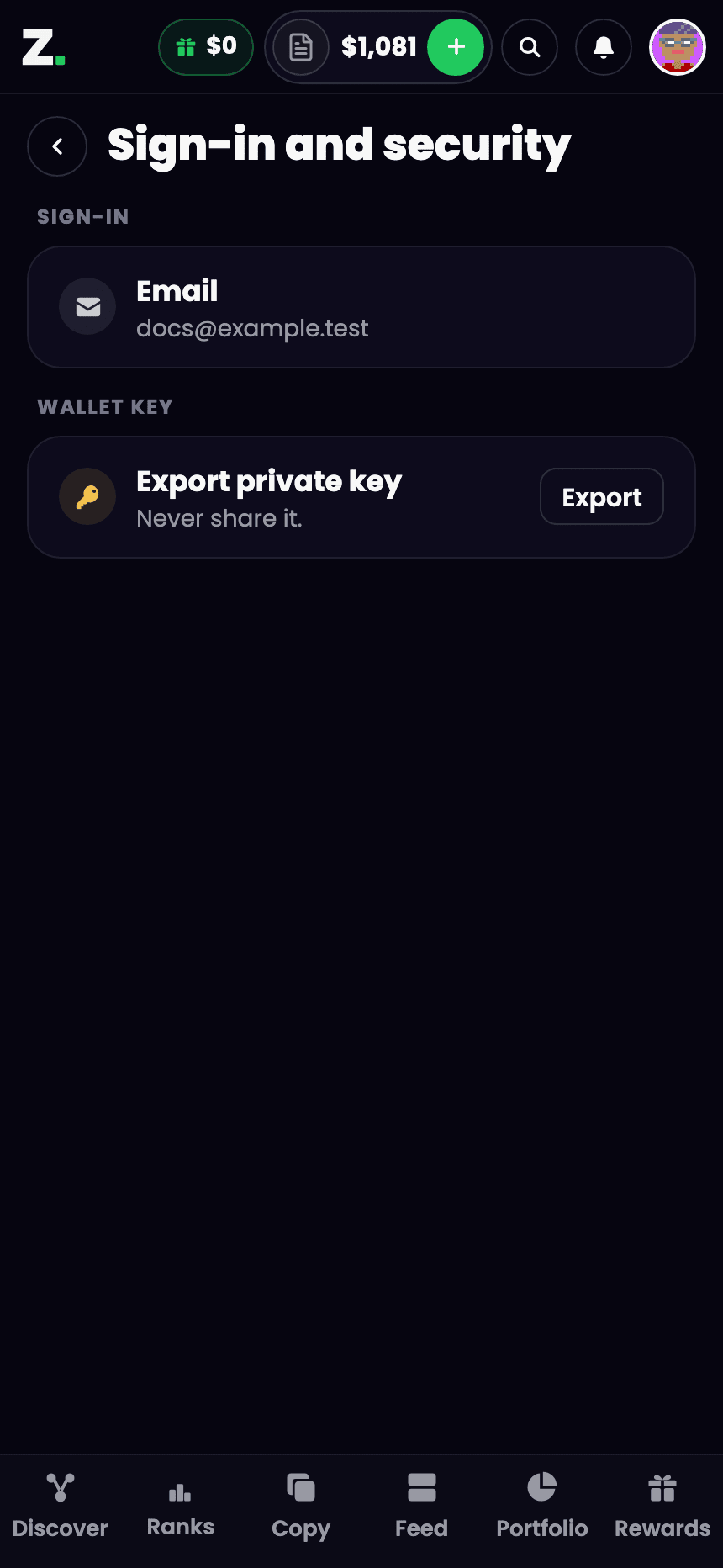 Sign-in methods linked to your account.
On your phone, open Sign-in and security from the Account group. Same rows, plus the Wallet key group.
Export your private key
Whoever holds the private key owns the wallet and every bag in it. That should be you. Take it any time and import it into another Solana wallet.
- Press Export key under Account (on your phone, Export in Sign-in and security), or the key button on a wallet card in Wallets. The button greys out for a moment while your wallet loads.
- Read the sheet Show the private key for your wallet. It names the wallet, says anyone with the key controls it and everything in it, shows when the key was last exported if it has been, and warns: "Never paste it anywhere. We never ask for it."
- Tick I understand.
- Press Show key. The key opens in a secure window. Copy it somewhere safe and close the window.
Press Cancel at any point and nothing is shown. The wallet card records the export date.
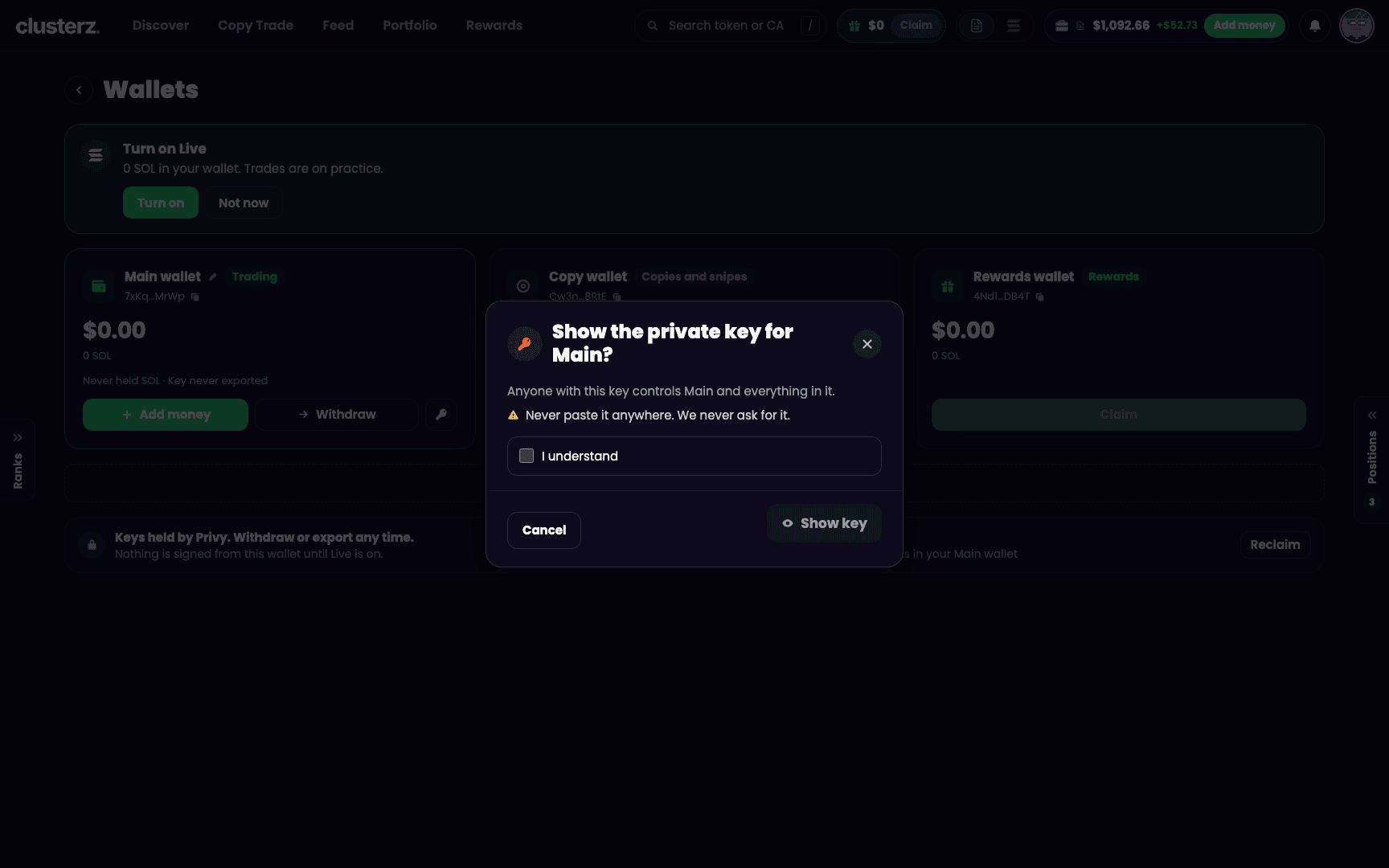 Export your private key any time. Never share it. Not with "support", not with anyone.
Want to know exactly what touches your wallet? The bottom of the Wallets page spells out what gets signed today. In Practice: "Nothing is signed from this wallet until Live is on." In Live: "This tab signs only your own swaps and rent reclaims, without a pop-up." With Keep exits running when I close the app on, it says clusterz can sign swaps and SOL transfers from the wallet within the limits set on it. Nothing outside those limits.
Exits that sell while you sleep
In Live, your take profit, stop loss and trailing stop sell from your open tab. No tab open, and a level that gets hit waits for you. While the chart nukes. Keep exits running when I close the app lets them sell anyway.
- Turn on Keep exits running when I close the app in Money and display. On your phone the row reads Keep exits running.
- On your phone, a sheet asks Let exits run while closed? It explains that clusterz uses this permission only to sell all of a position you hold at a level you set, and that clusterz enforces that limit. Press Allow exits while closed.
- Approve the permission when your wallet asks. A message reads Exits run while closed.
The row then reads "On since" the date, "Only exits you set sell for you." Turn it off any time with the same switch. Off, the row reads "Off. Exits sell only while a tab is open." If the permission sits on a different wallet from the one that trades, the row tells you and offers Turn on here and Turn off.
 Allow exits to run while the app is closed. Your stop loss does not need you awake.
Setting the levels lives in Exits.
Notifications
Notifications shows how many are new and opens its own page. Your notifications opens your list. Under Show these in the bell, switch each kind on or off: replies and mentions, reactions, new followers, posts from people you follow, your copies buying and selling, cluster buys and price moves on tokens you hold, callouts from traders you copy, and rewards ready. Keep the pings that make you money. Mute the noise.
Help and sign out
Help opens the controls, keyboard shortcuts on desktop, the map key, walkthroughs to replay, and links to How it works, Terms, Privacy and Discord. On desktop, Help sits in the footer. On your phone, at the bottom of the Account page.
Sign out is at the bottom of the Account page. Your wallet and your positions stay exactly as they are. Sign in again with the same method and they are right there.
Before you walk away
- Export your key once and keep it offline. The wallet card shows the last export date, so an export you did not make sticks out.
- Turn on Keep exits running when I close the app before you walk away from Live positions. A stop loss should not wait for you to wake up.