Portfolio and P&L
Your money, your bags, the trades you closed and your P&L, day by day. The wins and the cooked ones, all on one page.
Where it lives
Open Portfolio from the top bar, or from the bottom bar on a phone. On a desktop, the briefcase icon beside your balance in the header opens it too. On a phone, tap your balance. The header shows your balance and, right beside it, your P&L on trades closed today.
Portfolio always shows your results for the mode you are in. The icon beside Your money tells you which: a paper icon for Practice, a coin icon for Live. Practice and Live results never mix. Play money never pads your real numbers. See Practice and Live.
Everything updates as you trade. A buy or sell shows the moment you click. No refreshing to find out if you are up.
Your money
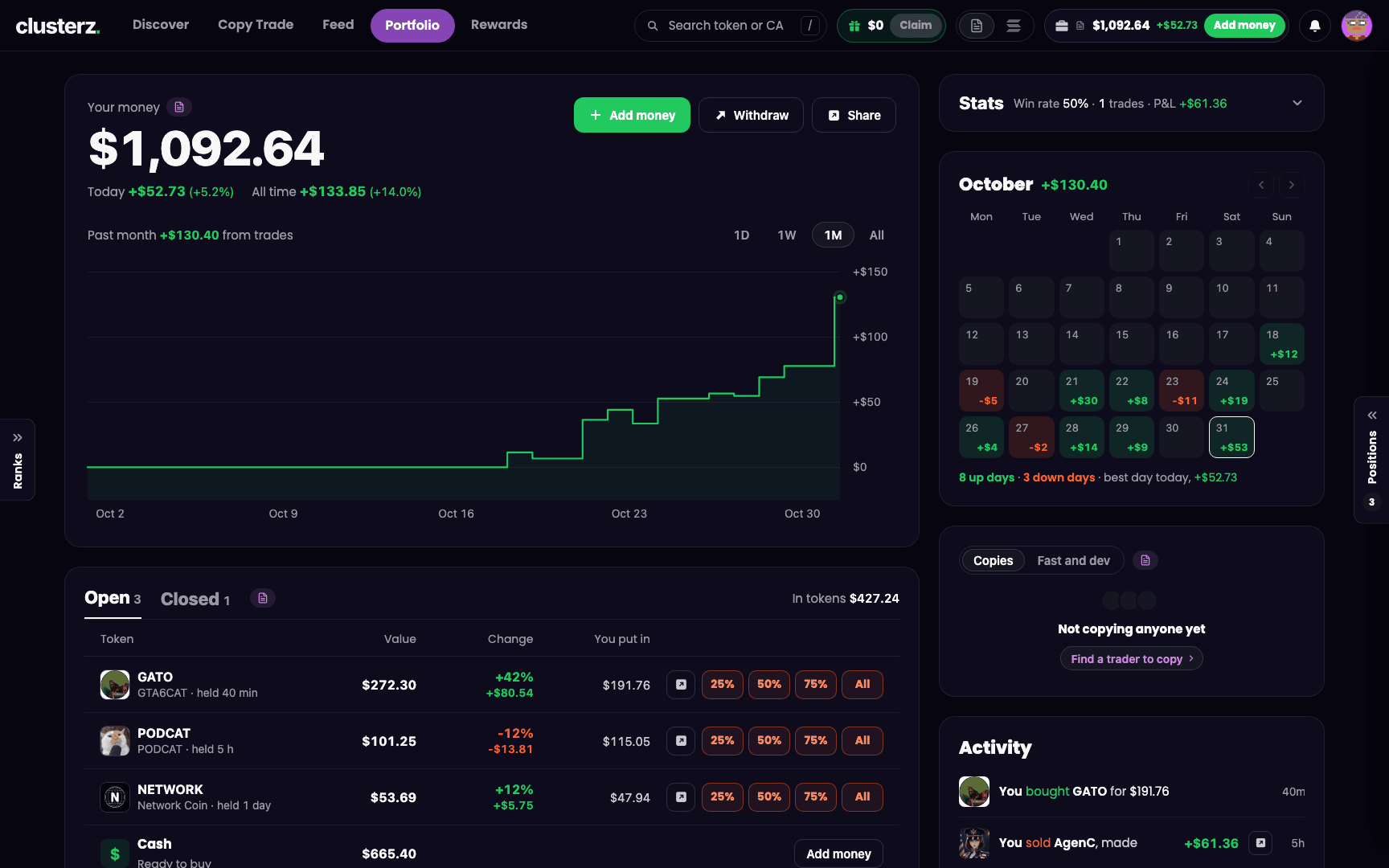 Your money, your P&L, your chart. No hiding from it.
Up top:
- Your money: your balance. Cash plus the value of the tokens you hold.
- Today: P&L on trades closed today, with the percent change from the balance you started the day with.
- All time: P&L since you started, with its percent.
- Add money, Withdraw and Share. See Funding your wallet for the first two.
The chart shows your balance over 1D, 1W, 1M or All. If there is no balance history for the range, it shows your P&L from closed trades instead. On a desktop, the line above it reads, for example, "Past month +$64.00 from trades · $200 added". So you can tell real trading wins from money you just deposited. No lying to yourself.
In Live, two strips can show under the buttons:
- rewards ready with a Claim button, when you have trading rewards to collect. See Rewards and referrals.
- Token rent to get back, from empty token accounts in your wallet. Press Reclaim and that SOL goes back to your balance.
If your Live wallet has never been funded, the page shows Your wallet is empty with Add money and Try in Practice.
Your bags and your closed trades
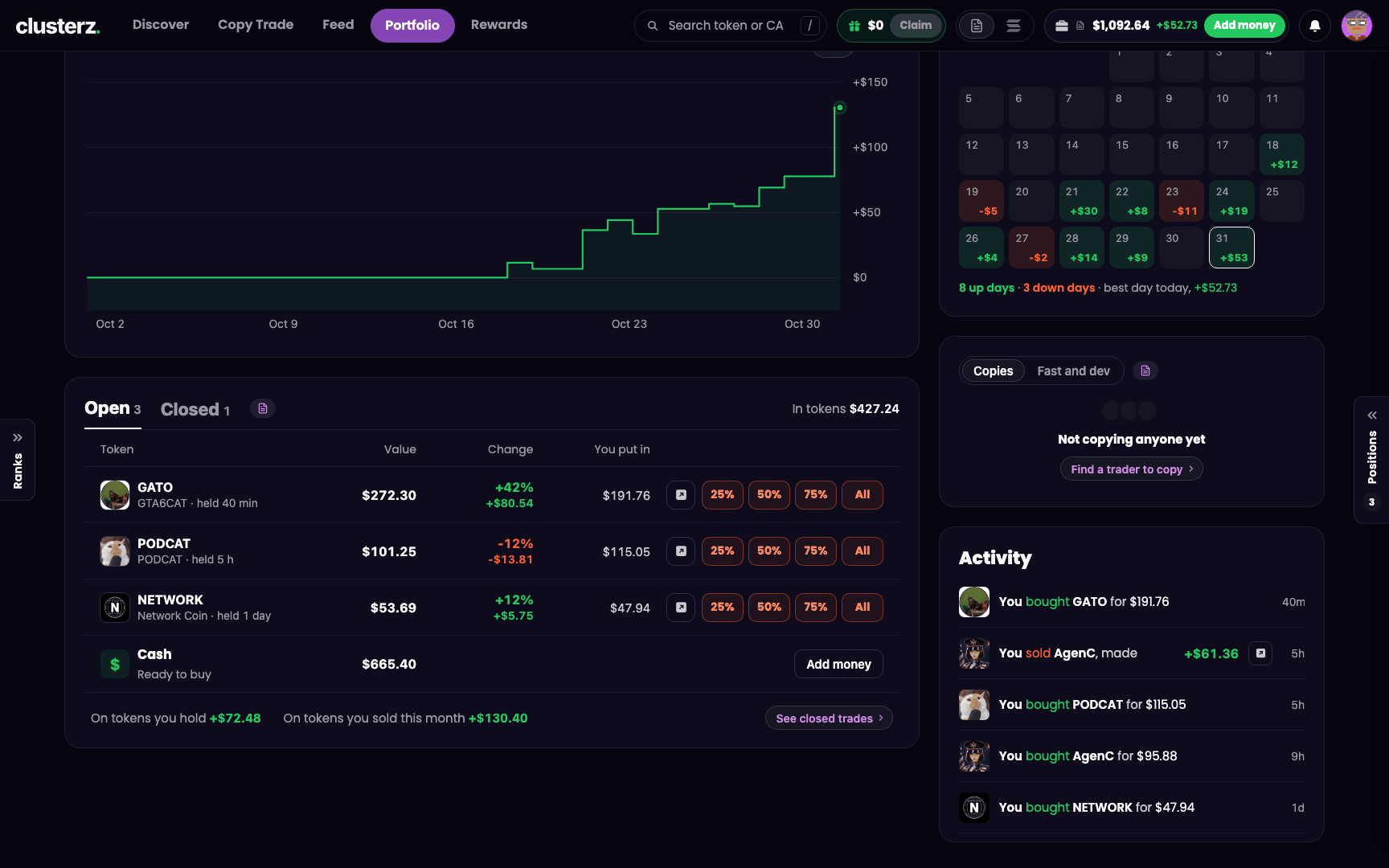 What you are holding, and what you already cashed out.
Two tabs, Open and Closed, each with a count.
Open is every bag you are still holding:
| Column | What it shows |
|---|---|
| Token | Name, and how long you have held it |
| Value | What your tokens are worth now |
| Change | Your P&L in percent and in money |
| You put in | What you paid |
Every row has the four sell buttons, 25%, 50%, 75% and All by default, plus a share button. No digging for a sell. Change the first three sizes in Trade settings. All is always the fourth. Click the token's name to open its page.
Under the list, Cash shows the money ready to buy with. On a desktop, In tokens shows the total value you hold, and the footer shows your P&L On tokens you hold and On tokens you sold this month.
Tokens you kept after selling sit under Moonbags, "what you kept after selling", with the share you kept and the token's peak. See Buying and selling for how to keep a slice.
Sometimes a row tells you something is up:
- Verifying price: the buy was recorded at the live price and is still being checked. A sell waits until the check is done.
- Fill disputed or Unverified: the price your trade filled at could not be confirmed, so the trade stays out of your performance numbers. No fake wins.
- Selling: waiting for the last sell to land (on a phone, Selling: waiting to land): a sell is still confirming on the network.
- Selling paused: Live trading is paused for a short time, for example while the network is down. It resumes on its own.
- not priced right now: the page lost its live connection to the server, so prices are not current. The row dims and its sell buttons turn off until the connection is back. You never sell blind on a stale price.
Closed is every trade you took off the table, newest first, with Sold for, Change and You put in, and how long ago you sold. Each row has a share button.
Stats
The Stats card is the mirror. Folded, it is one line: win rate, number of trades, P&L. Open it for the rest.
- Made on sold tokens: P&L on everything you have sold.
- On tokens you hold: P&L on what you still hold.
- Fees paid: every fee you have paid.
- Trades: how many you opened and closed.
- Win rate, with your wins and losses on a bar.
- Trade quality: Average win, Average loss and Biggest drop. That last one is the deepest fall of your sold-trade P&L from its high, and how long ago that high was.
- Best trades and Worst trades, your top two of each.
The numbers do not care about your feelings. That is the point.
How we count P&L
P&L is shown after fees by default. A held token's percent is measured against what you paid plus the fees on the buy. A token that goes to zero reads -100%. Rugged is rugged.
Want P&L before fees? Open Trade settings and switch off P&L after fees. P&L figures then show the price move on what you paid. The setting is saved to your account, so it follows you to every device.
P&L calendar
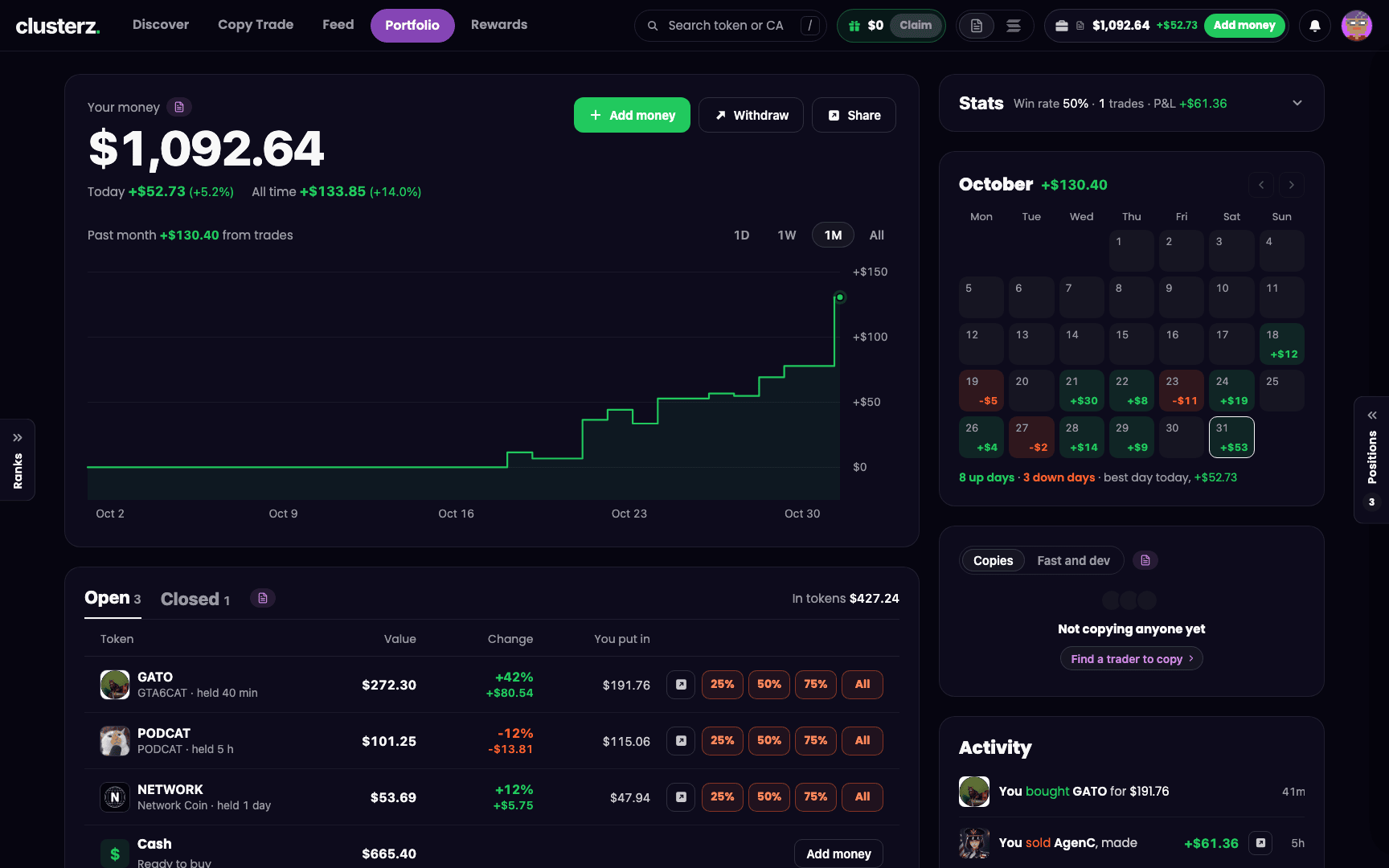 Every green day and every red one, laid out by the month.
One month on one grid, Monday first. No hiding the red days. Each day with sells shows its P&L, green for up, red for down. The month's total sits beside its name. The line under the grid counts up days and down days and names your best day. Use Previous month and Next month to move between months.
- Click a day with a figure.
- The day opens under the month: its 24 hours as bars, then Sells that day, each with the time, the token and its P&L.
- Click the day again, or the close button, to fold it.
Copies
The Copies card shows how the traders you copy did for you this month. One row per trader, with the trades copied and the P&L, and a total for the month. You find out fast who is printing and who is just burning your SOL. Switch to Fast and dev for your snipes. When every copy shares one daily loss limit, the card shows it and what was lost today. My copies opens Copy Trade.
In Live, when your copies trade from a Copy wallet, the card shows that wallet's balance with Add money and Withdraw. Press Open for its own view: P&L over 24 hours and 30 days, buys, win rate, spent, and recent copies. Each copy tells you how it went out, for example Took profit, Stopped out, Sold when they sold, You sold or Moonbag. Move to Main moves SOL from it back to your Main wallet.
Activity
Activity is your account's paper trail, plain lines, newest first: "You bought", "You sold, made", "You added money", "You withdrew money", and "Your copy of" a trader buying or selling. Sells carry a share button.
Flex your P&L
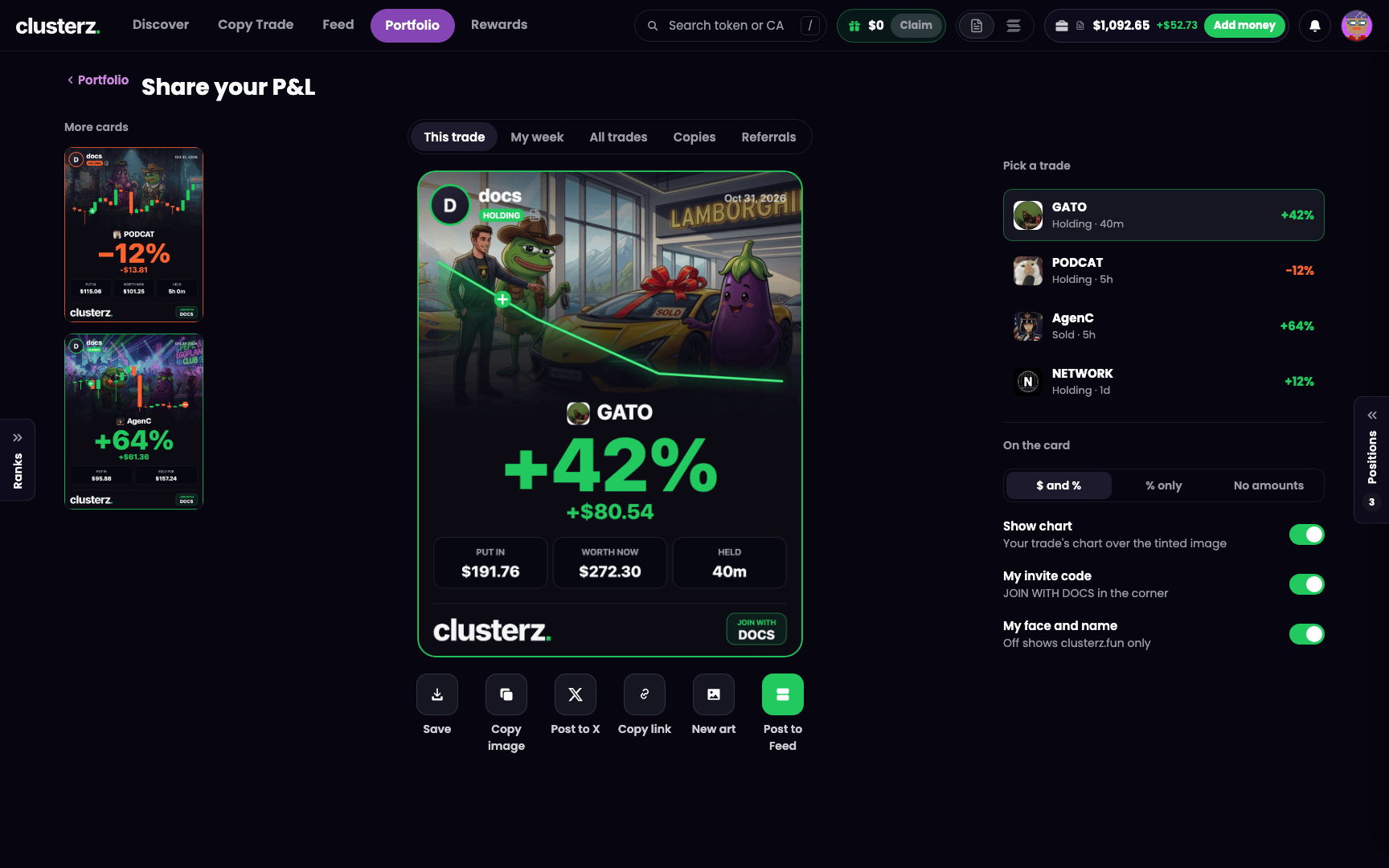 Hit a runner? Make the card.
Press Share at the top of Portfolio, or the share button on any row, and you get a P&L card. Screenshots of a wallet tracker are for KOLs. Post the card.
- Pick a card: This trade, My week, All trades on one token, Copies, or Referrals when you have an invite code.
- Pick the trade, week or trader from the list beside the card.
- Open Card options to choose $ and %, % only or No amounts, and switch on Show chart, My invite code (when you have one) and My face and name. With your face and name off, the card shows clusterz.fun only.
- Press Save, Copy image, Post to X, Copy link or Post to Feed. On a phone, Share takes the place of Copy image. New art draws a fresh background.
Before you send the next one
- Check today's P&L beside your balance in the header before you take a new trade. It counts closed trades only.
- Had a bad week? Open each red day in the calendar and read Sells that day. Find out where you got cooked.
- Reclaim token rent from time to time. Each empty token account holds a little SOL.
- Use % only on a shared card to show the result without showing your size.